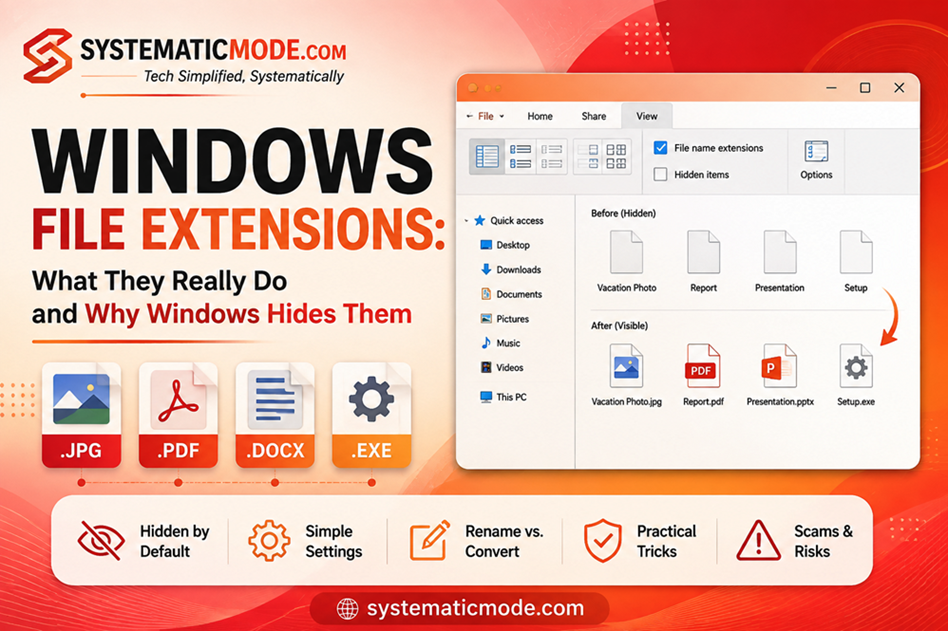
Introduction
Welcome to Systematic Mode!
Today’s topic is Windows File Extensions — and at first glance, it might sound like something only “computer people” need to think about.
It isn’t. Whether you have a deep technical background or you’ve never opened a settings menu in your life, you’ve almost certainly encountered file extensions already. You simply may not have known what they were called.
You’ve heard of PDF, JPG, MP3, and MP4, haven’t you? You probably see terms like JPEG JPG or PNG when uploading a photo online, or PDF when uploading a document. But have you ever stopped to think about what those letters actually mean?
Those few letters are file extensions, and they play an important role in how Windows identifies and handles files.
So, you already deal with file extensions constantly. What most people don’t understand is what they actually are, why they exist, and what happens when Windows relies on them.
That’s exactly what we’ll explore in this lesson — starting with the fundamentals and building from there.
What You’ll Learn
In this lesson, we’ll cover:
- What a file extension is and how it is different from a filename
- How Windows uses file extensions to identify and handle files
- The difference between a file extension and a file format
- Why Windows hides file extensions by default
- How to show file extensions in Windows File Explorer
- What happens when you rename a file extension
- How misleading file extensions can be used to disguise suspicious files
Let’s start.
Part 1: What Is a Windows File Extension?
Have you ever wondered why, when you open a document, it automatically launches in Word, Notepad, or a PDF reader — without you ever telling it which program to use? Or why a song or a movie file always finds its way to your media player, every single time, without fail?
Somewhere behind the scenes, your computer is making a decision — instantly and correctly — about which program should open which file. It never gets confused, it never asks “wait, what is this file, exactly?”
The answer to that quiet little mystery is hiding in something you’ve probably scrolled past a thousand times without a second thought: the Windows file extension.
Let’s find out exactly how it works.
1.1 What Is a File Extension?
At its simplest, a file extension is a short code at the end of a filename that helps your computer identify what kind of file it is and which application should be used to open it. It’s usually just a few letters — three or four, though not always — and appears after a dot in the filename.
You’ve already seen dozens of them without necessarily calling them “extensions.” Things like .jpg, .pdf, .mp3, .docx, and .exe are all file extensions. Each one tells Windows something different about the file and how it should be handled.
Now let’s break it down further and see exactly where the extension appears within a filename.
Note: If a file on your computer appears without an extension such as
.jpgor.docx, there is nothing wrong with the file. By default, Windows hides extensions for known file types, so the extension may simply not be visible.
Understanding the Anatomy of a Filename
Let’s take a simple example: FlowerPhoto.jpg
If we break this filename apart, we can identify three distinct parts:
- Base name →
FlowerPhoto - Dot →
. - Extension →
jpg
  FlowerPhoto  .  jpg
      │        │   │
      │        │   └── Extension
      │        └────── Dot (separator)
      └─────────────── Base name
The base name is the part you normally use to identify the file. You can generally choose it freely — for example, FlowerPhoto, Vacation, or MyPicture. Changing the base name does not normally change the file’s format.
The extension, however, has a different role. Windows uses it to identify the file type and determine which application should be associated with the file. In our example, .jpg indicates a JPEG image file.
The dot separates the base name from the extension. In FlowerPhoto.jpg, the dot marks the boundary between FlowerPhoto and jpg.
So, in simple terms:
FlowerPhoto.jpg = Base name + Dot + Extension
This distinction is important because changing the base name is generally harmless, while changing or removing the extension can affect how Windows identifies and opens the file.
Note: In everyday language, people often use filename to mean the part before the extension, such as
FlowerPhotoinFlowerPhoto.jpg. Technically, that part is the base name, while the complete filename isFlowerPhoto.jpg. For clarity, this lesson generally uses base name when referring specifically to that part, although filename may occasionally be used in the casual sense for convenience.
What About Filenames with More Than One Dot?
A filename can contain more than one dot. For example: My.flower.Photo.jpg
Here, the dots in My.flower.Photo are simply part of the filename. The last dot separates the base name from the file extension.
For this filename:
- Base name:
My.flower.Photo - Dot:
. - Extension:
jpg
So even though the filename contains several dots, the extension is still jpg.
This distinction becomes important when working with file extensions in Windows. The base name identifies the file, while the extension tells Windows what type of file it is and which applications can normally open it.
By default, Windows hides known file extensions in File Explorer. As a result, when you rename a file, you may appear to be changing only its name while the extension remains hidden. Changing the base name and changing the extension are two different things, and changing the extension can affect how Windows identifies and opens the file. We’ll look at that difference in more detail later.
1.2 Common File Extensions and What They Represent
There are hundreds of different file extensions, and you don’t need to memorize them all.
Here’s a quick reference table of some file extensions you’re likely to run into regularly:
| Extension | Commonly represents |
|---|---|
.jpg / .jpeg | JPEG image |
.png | PNG image |
.pdf | PDF document |
.docx | Microsoft Word document |
.xlsx | Microsoft Excel workbook |
.mp3 | MP3 audio |
.mp4 | MP4 video |
.zip | Compressed archive |
.exe | Windows executable program |
.apk | Android application package |
1.3 Extension, File Type, and File Format — Are They the Same?
In casual conversation, people often use the terms Extension, File Type, and File Format interchangeably. But since we are building a systematic understanding, let me clarify how they differ:
- File Format (The Raw Data Structure): This is the actual mathematical way data is encoded inside the file. For example, JPEG is an image encoding technology designed to compress photos efficiently.
- File Type (The Category): This is the general umbrella category the file belongs to—such as Image, Document, Audio, or Video.
- File Extension (The OS Suffix): This is the actual visual text string (
.jpgor.jpeg) appended to the filename so Windows knows to use JPEG decoding logic.
Understanding this distinction helps you avoid a common misconception:
Renaming a file extension does NOT change the file format!
Renaming .jpg to .pdf changes the File Extension, but it does not convert the underlying File Format. The file is still compressed JPEG image data under the hood—Windows just gets temporarily confused about how to open it!
Now that we understand what a file extension is and what it represents, let’s take the next step and see what Windows actually does with this information—and how it uses file extensions to decide which application should handle a file.
Part 2: What Do Windows File Extensions Really Do?
2.1 How Windows Uses a File Extension
So far, we’ve talked about what an extension is. Now let’s talk about what it actually does.
When you double-click a file, Windows doesn’t pause to think, guess, or analyze anything complicated. It follows a simple, almost mechanical chain of logic:
Filename → Extension → File Association → ApplicationIn other words, Windows looks at the extension, checks which program has been assigned to handle that extension, and hands the file over to that program. That’s it. No deep inspection, no second-guessing — just a quick lookup based on those few letters after the dot.
This is exactly why the extension matters so much. It’s not just decoration at the end of a filename — it’s the instruction Windows relies on to decide what happens next.
2.2 File Associations
This is really just that same idea in action. A file like photo.jpg opens in Photos, and document.pdf opens in your PDF reader or browser, because Windows keeps a running list behind the scenes — pairing each extension with a default app. That pairing is what we call a file association.
We won’t go deep into how these associations are configured here. The core idea is simply that Windows uses the file extension to determine which application should normally open the file.
When Windows Doesn’t Recognize the Extension
What happens when Windows comes across an extension for which it doesn’t have a suitable file association?
Instead of automatically choosing an application, Windows may show a prompt such as “How do you want to open this file?”, along with a list of installed applications you can choose from.
This can happen in several situations:
- No associated program is installed: Windows may recognize the file type, but there is no suitable application installed to open it.
- Multiple compatible programs are available: Windows may ask which application you want to use instead of automatically selecting one.
- No file association exists: Windows has no application associated with that extension.
So, seeing the “How do you want to open this file?” prompt does not necessarily mean Windows cannot identify the file type. It may simply need you to choose which application should open it.
2.3 Does Windows Actually Look Inside the File?
You might think that when you open photo.jpg in Photos, Windows looks inside the file, recognizes the image data, and decides, “Ah, this is a photo.” But that’s not how the normal file-opening process works.
For a typical file launch, Windows primarily uses the file extension to determine the file type association and which application should be used to open it. A file named photo.jpg could, in theory, contain something entirely different from an actual JPEG image. The .jpg extension tells Windows how to handle the file, but it does not prove what is actually inside it.
This is also why the distinction between renaming a file and changing its extension matters. Changing the extension changes the label Windows uses when handling the file; it does not change the file’s actual contents or format.
Note: Many file formats contain a distinctive identifier within their data, commonly known as a file signature or magic bytes. These identifiers can help programs determine the actual format of a file, regardless of its extension. File signatures and magic bytes are outside the scope of this lesson.
Now that you understand the theory of how Windows uses extensions, it’s time to get practical.
Part 3: Why Does Windows Hide File Extensions?
3.1 The Missing .jpg
Let’s go back to something we mentioned earlier in this lesson — but this time, let’s actually look at it.
Here’s a screenshot straight from my own computer, showing a photo file sitting in a folder:
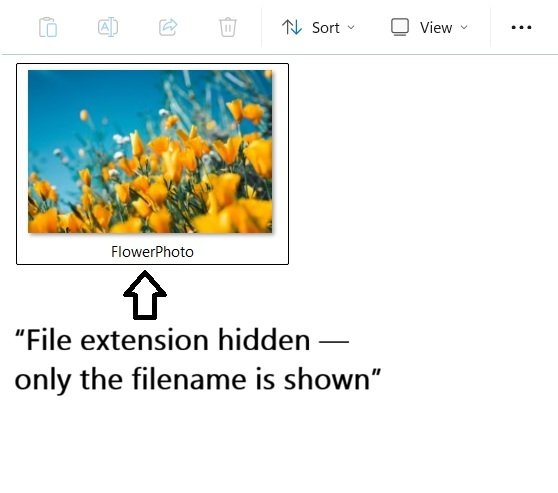
Notice the name: it simply says FlowerPhoto. Not FlowerPhoto.jpg — just FlowerPhoto.
But hold on — we spent this entire lesson explaining that every file has an extension, and that Windows relies on it to know how to open the file. So if that’s true, where did the .jpg go?
3.2 Why Windows Hides Extensions by Default
The answer is simple: Windows is hiding it from you, on purpose, by default.
This isn’t a bug or an oversight — it’s a deliberate design choice, and there’s real reasoning behind it:
- Simpler filenames.
FlowerPhotojust looks cleaner thanFlowerPhoto.jpgto someone who doesn’t care about the technical details. - A less cluttered appearance. File extensions can look like unnecessary “computer noise” to the average user, so hiding them keeps the interface feeling more approachable.
- Reduced confusion for everyday users. Many people simply don’t need to know or think about extensions at all to use their computer successfully.
- Preventing accidental changes. If extensions are visible while renaming, it becomes much easier to accidentally delete or alter the extension by mistake — which, depending on the file, can make it stop opening correctly.
From Microsoft’s perspective, this trade-off makes sense for the average, everyday user.
The Trade-Off: Convenience vs. Visibility
Hiding extensions makes Windows easier and cleaner to use. But there is a trade-off. When the extension is hidden, you lose a small but useful piece of information about the file. Compare these two views:
Extensions hidden:
FlowerPhoto
FileReport
TaxInvoice
GameSetup
Extensions visible:
FlowerPhoto.jpg
FileReport.pdf
TaxInvoice.docx
GameSetup.exe
The second view immediately tells you much more. For a beginner, hiding extensions may make everyday file management easier.
For someone trying to understand how Windows works—or someone who wants more visibility into their files—showing them can be much more useful.
For now, here’s the natural next step: let’s actually turn this hidden setting on, and see for ourselves what changes.
Part 4: How to Show File Extensions in Windows
Before jumping into the steps, one thing needs to be clear upfront: the walkthrough below is based on Windows 11. Older versions follow slightly different paths, and I’ll point out the relevant differences where needed.
There are several ways to reach this setting in Windows, but rather than listing them all, I’ll walk you through three of the most useful methods — including a reliable Run command that works across many Windows versions and happens to be my personal favorite.
4.1 Method 1: File Explorer (The Modern Way)
This is the quickest graphical method in modern versions of Windows. The location of the option has changed slightly over the years, but in Windows 11 it is available directly from the File Explorer interface.
File Explorer → View → Show → File name extensions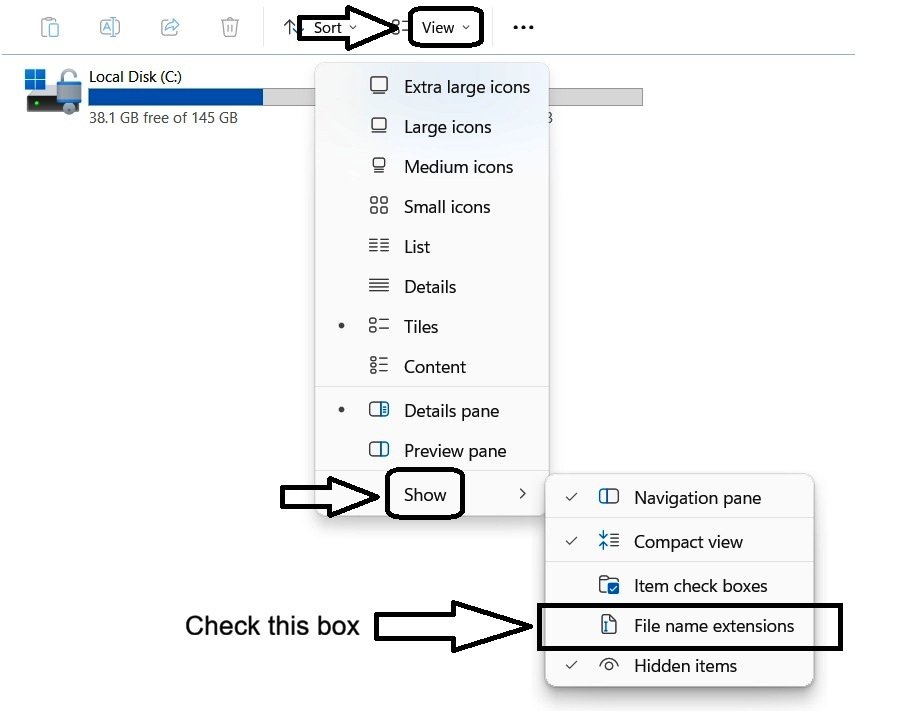
Simply checking this box turns extensions on instantly, across your entire system.
A note for older Windows: This ribbon-based method was only introduced in Windows 8, so Windows 7 doesn’t have this quick toggle. Windows 8 and 10 follow the same pathway:
File Explorer → View → File name extensions.
4.2 Method 2: Folder Options (The Classic Way)
Folder Options is the traditional way to access many File Explorer settings, and it has been part of Windows for decades. Unlike the quick toggle in Method 1, this method takes you directly to the detailed settings behind File Explorer.
File Explorer → Three-dot menu (...) → Options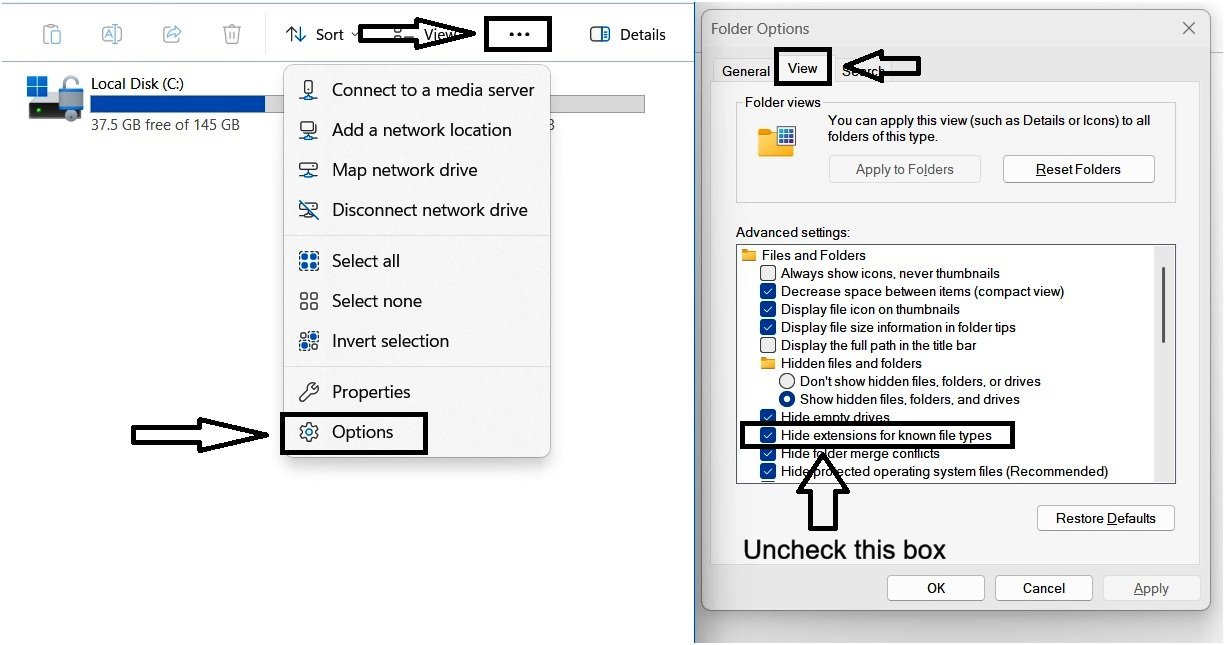
This opens the Folder Options window. Select the View tab, find Hide extensions for known file types, and uncheck it. Then click Apply and OK.
A note for older Windows: The location of Folder Options is slightly different in older versions:
Windows 7:
File Explorer → Organize → Folder and search optionsWindows 8 & 10:
File Explorer → View → Options → Change folder and search options
4.3 Method 3: Run Command (My Personal Favorite)
While we’ve explored two visual methods so far, this third method is my personal favorite. It uses a simple Run command to open the required settings directly, and the command works across different versions of Windows.
To open it:
- Hold down the Windows Key and press
R(Win + R) to invoke the Run prompt. - Type
control foldersinto the box. - Hit Enter.
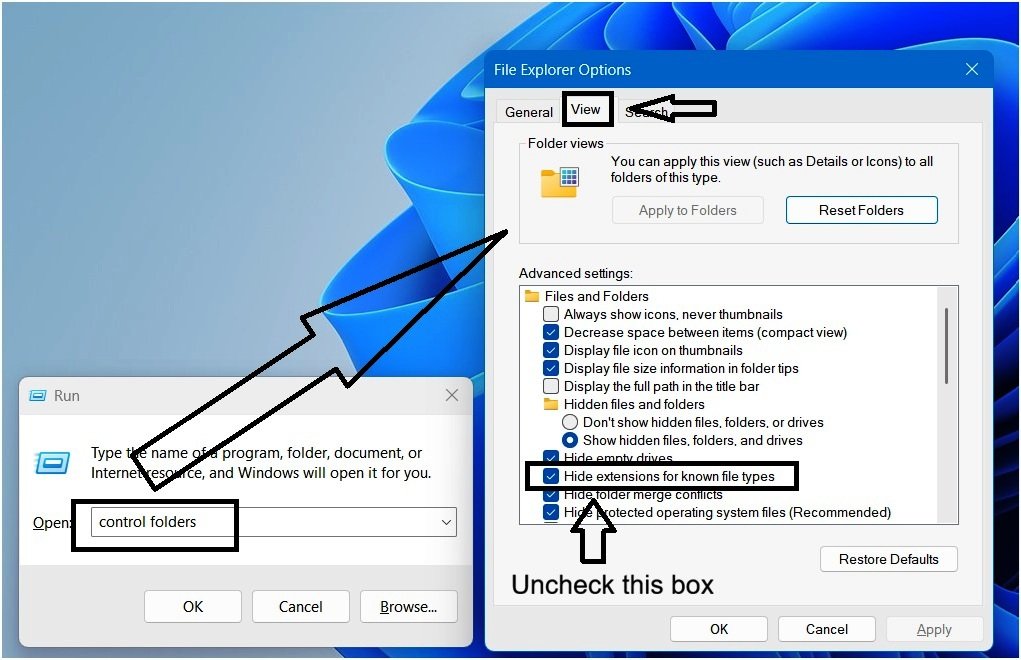
This command triggers the folder options window directly. The only subtle difference you’ll notice across versions is what the window itself is called:
| Windows Version | Commonly Called |
|---|---|
| Windows 7 / 8 | Folder Options |
| Windows 10 / 11 | File Explorer Options |
Despite the naming difference on newer versions, the settings inside are exactly the same either way.
A note on other methods
We’ve now covered the three most useful ways to reach this setting. There are a couple of other convenient options:
- Control Panel: Go to Control Panel → Appearance and Personalization → File Explorer Options (called Folder Options in some older Windows versions).
- Start Menu Search: Search for “Folder Options” or “File Explorer Options,” depending on your Windows version.
So there you have it — three reliable ways to reach the same setting. Now let’s see exactly what changes on your screen the moment you turn it on.
4.4 What Changes After You Enable It?
Let’s see this in action. Remember our FlowerPhoto file from earlier?
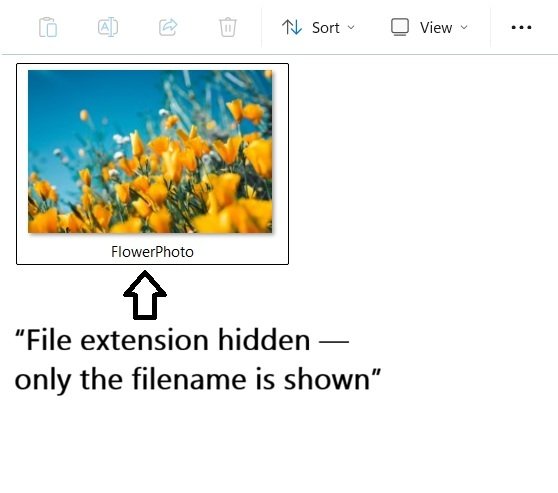
Before enabling the setting, this is all we see: FlowerPhoto. Just a name, no indication of what type of file it actually is.
Now, here’s the exact same file, after enabling extensions using any of the methods above:
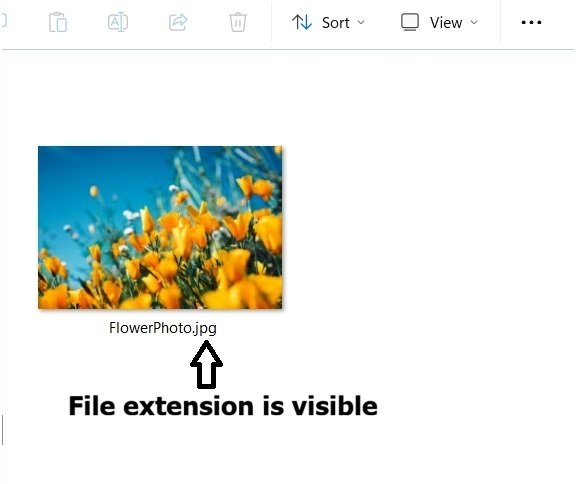
Suddenly, we can see it clearly: FlowerPhoto.jpg. Nothing about the file itself has changed — same photo, same content. The only difference is that Windows is now showing us the file extension that was there all along.
This same change applies across different file types on your system — documents, spreadsheets, videos, compressed files — not just images.
Now that you can actually see extensions for yourself, something interesting becomes possible — and it brings us right back to a question we planted earlier in this lesson: what really happens when you rename a file versus when you rename its extension? Let’s find out.
Part 5: Renaming a File vs. Renaming Its Extension
Now that file extensions are visible on your system, it’s time to see how Windows behaves when you modify them.
There is an important technical difference between renaming a file’s base name and changing its extension. Understanding this distinction will help you see why renaming a file is not the same as changing its file type — and why changing an extension doesn’t actually convert the file’s format.
5.1 A Normal File Rename
Let’s start with something simple — a regular rename. Take our file, FlowerPhoto.jpg, and rename it to SummerFlowerPhoto.jpg
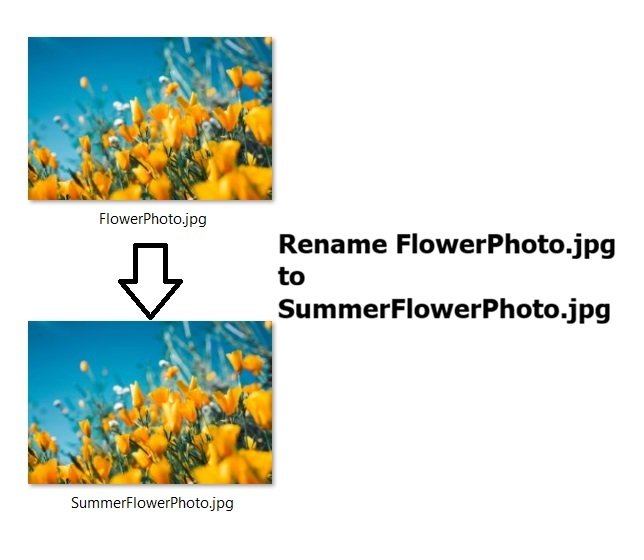
Nothing unusual happens here. The icon stays the same, it still opens exactly like it did before, and it’s still the same photo. All we changed was the base name — the part before the dot. The extension, .jpg, was left completely untouched.
This is the kind of rename most people do all the time, without a second thought.
5.2 Renaming the Extension
Now let’s do something different. Take that same file and, instead of changing the name, change what comes after the dot — from FlowerPhoto.jpg to FlowerPhoto.txt
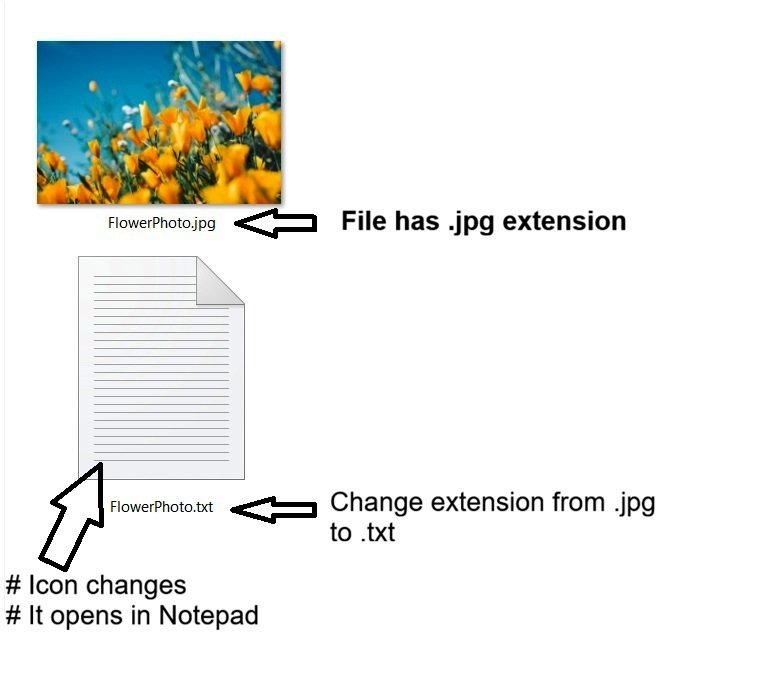
The moment you do this, two things happen immediately, and both are worth paying close attention to:
- First, the icon changes. Instead of the little image thumbnail you saw a moment ago, the file now shows a plain text-file icon.
- Second, double-clicking the file no longer opens it as a photo. Instead, it opens in Notepad — the exact program Windows uses to handle
.txtfiles.
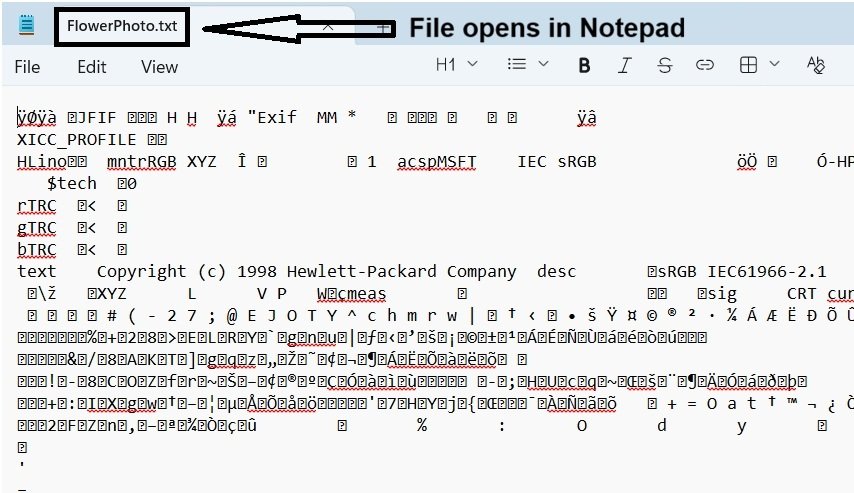
Remember Part 2? We already learned that Windows trusts the extension completely, without checking what’s actually inside. This is that exact behavior playing out right in front of you. Windows didn’t check whether this file actually was a text file — it simply saw .txt and handed it straight to Notepad.
The Warning Windows Shows You
If you tried changing .jpg to .txt on your computer, you noticed that Windows didn’t let it happen quietly. The moment you changed the extension and hit Enter, a pop-up dialog interrupted you:
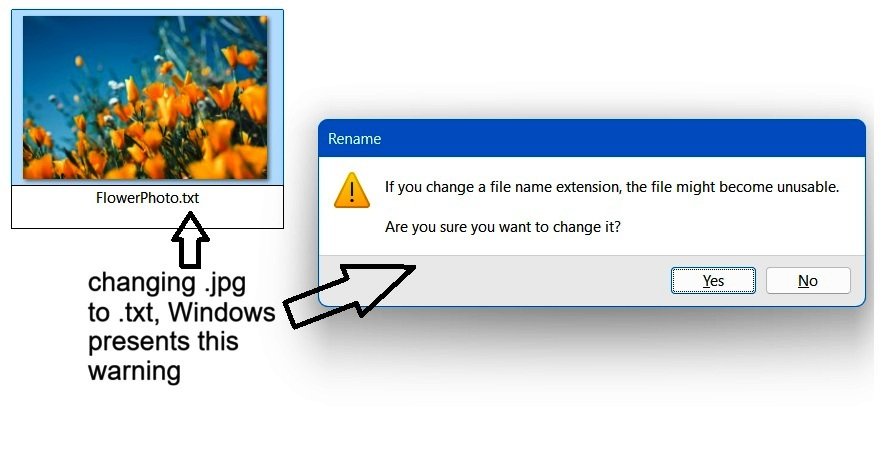
This warning exists precisely because of what we just witnessed. When you change the extension, Windows may use the new extension to associate the file with a different type of application. If the new extension doesn’t match the file’s actual format, the application Windows chooses may not be able to open or interpret the file correctly.
This isn’t an error message saying you did something illegal; it’s a system warning. Windows is simply telling you: “You are changing the file extension. This may change how Windows identifies the file and which application is used to open it. If the new extension doesn’t match the file’s actual format, the file may not open correctly.”
5.3 What Actually Changed?
So here’s the important question: when we renamed FlowerPhoto.jpg to FlowerPhoto.txt, did the file actually turn into a text file?
No — and this is one of the most important ideas in this entire lesson.
The underlying data inside the file didn’t magically transform into text. The photo’s actual content — including its image data — remained completely unchanged. All we changed was the extension Windows uses for file type identification and application association.
Notepad opened the file because .txt is associated with Notepad, not because the file actually became a text file. Since the underlying data is still JPEG image data, Notepad displays it as scrambled, unreadable characters.
Rename vs. Convert — What’s the Real Difference?
- Renaming an extension changes the filename extension Windows uses for file type identification and application association. The actual data inside the file remains unchanged.
- Converting a file is a completely different process — it actually reads and interprets the original data and produces a new file in a different format. Proper conversion requires software that understands the source and target formats; simply renaming the extension cannot perform this conversion.
In short: Renaming changes how Windows identifies and handles the file. Converting actually transforms the file’s data into a different format.
Now that we’ve seen the difference, let’s look at what happens when we try changing the extension to a completely different file type.
Part 6: Handling Unknown & Missing Extensions
We’ve now seen what happens when an extension is changed to something misleading. But there’s another set of situations worth understanding — what happens when there’s no extension to trust at all, or one Windows has genuinely never encountered before?
6.1 What Happens When a File Has No Extension?
Let’s go back to our FlowerPhoto file one more time — but this time, we’ll remove the extension completely, leaving only:
FlowerPhoto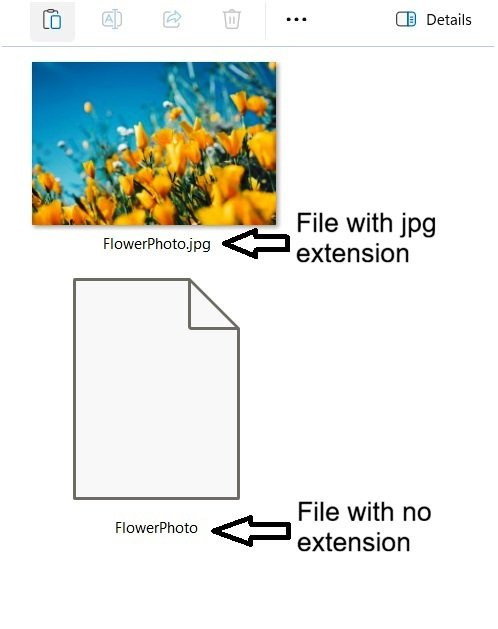
This is different from simply hiding the extension. In this case, the file genuinely has no extension — there is no dot separating a base name from an extension.
Double-click the file, and Windows has no file-extension-based association to use to determine which application should open it. As a result, Windows may ask you which application you want to use rather than automatically opening the file with a specific program.
The important point is that removing the extension does not remove or change the file’s underlying data. The file itself is still the same file; only its filename no longer provides an extension for Windows to use when determining how it should be opened.
6.2 What Happens with Unrecognized Extensions?
Now let’s try something slightly different. Instead of removing the extension, let’s add one that we’ve simply made up:
FlowerPhoto.ddss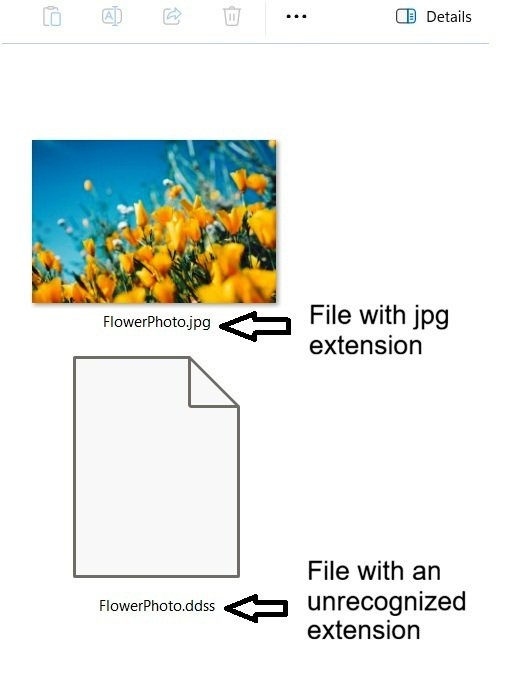
Notice that Windows will still treat .ddss as the extension because it appears after the final dot. But that doesn’t mean .ddss is a genuine or recognized file type. You can type almost anything after the dot, but simply adding it doesn’t create a real file format or automatically give it meaning.
Because no application on our system is associated with .ddss, double-clicking the file produces a result similar to the previous example: Windows doesn’t automatically know which application to use.
But there’s an important distinction. In the previous example, the file had no extension at all. Here, an extension exists — it just isn’t associated with an application on our system.
Now let’s take this one step further with a real extension.
6.3 The “Open With…” Application Handler Prompt
Now let’s try something different. Take our file and rename it to:
FlowerPhoto.apk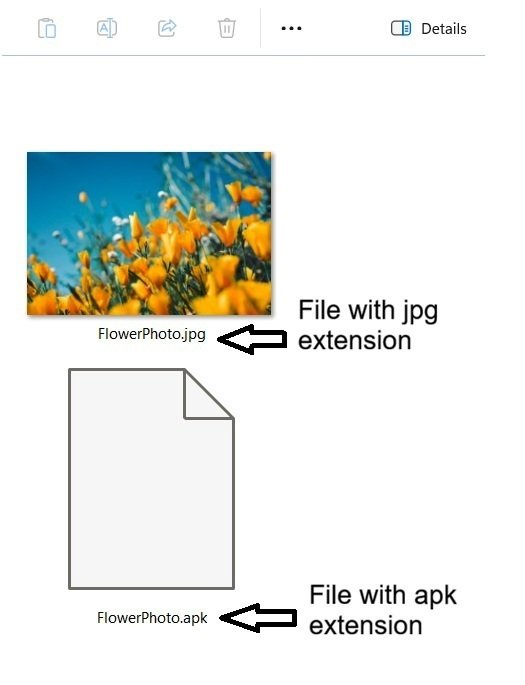
Unlike .ddss, .apk is a real file extension used for Android application packages. However, Windows does not normally have a built-in application for opening or installing APK files. Unless you have installed software that registers an association for .apk, Windows may not have an application to use when you double-click the file.
So we now have three genuinely different situations:
- No extension — there is no extension for Windows to use for file association.
- Made-up extension (
.ddss) — an extension exists, but there is no application associated with it. - Real extension with no associated application (
.apk) — the extension represents a genuine file format, but Windows has no suitable application associated with it on our system.
Despite the different reasons, all three can lead to the same basic result: Windows cannot determine an application to use automatically, so it asks you to choose one.
That’s when you may see a prompt such as “Select an app to open this .apk file.”
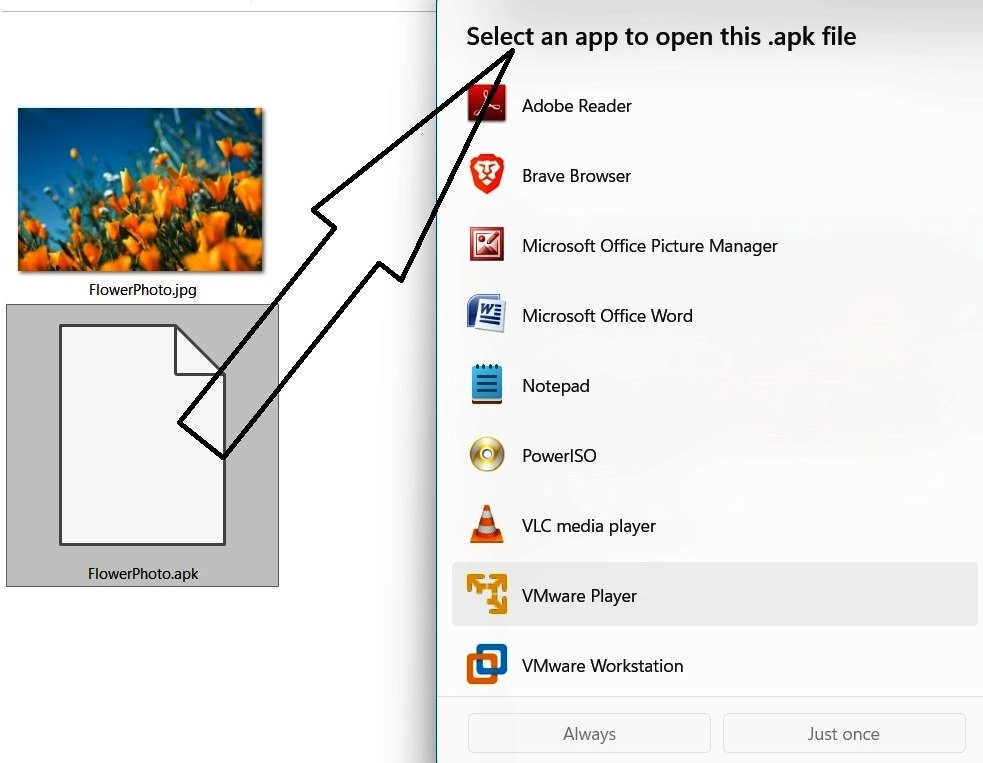
Note: This prompt’s exact wording and layout has shifted slightly across Windows versions. On Windows 8 and 10, you may see it phrased and laid out a bit differently than on Windows 11 — but the underlying purpose has always stayed the same: Windows is asking you to make the choice it can’t make on its own.
Now that we’ve seen what happens when Windows has nothing to trust, let’s go back to something a little more mischievous — how the extension system can be deliberately manipulated, starting with a trick of our own.
Part 7: A Useful Trick — Making a File Less Convenient to Open
7.1 The Idea
Sometimes you don’t need real security — you just want a file that doesn’t open the moment someone accidentally double-clicks it. Maybe it’s a personal photo sitting in a shared folder, or a document you’d rather people not casually stumble into. You’re not trying to lock it away — just make it a little less obvious.
7.2 The Experiment
Let’s continue with our FlowerPhoto.jpg example.
Normally, Windows recognizes .jpg and opens the file with the application associated with JPEG images. What if we give the file an extension that Windows doesn’t normally associate with an application?
For example:
FlowerPhoto.jpg
        ↓
FlowerPhoto.xyz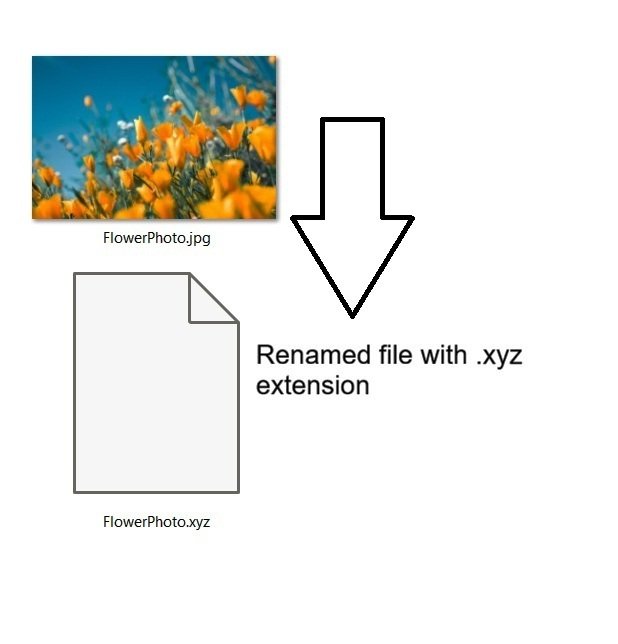
Here’s what happens, step by step:
- The icon changes — Windows no longer shows the image thumbnail, since it has no idea what
.xyzis supposed to be. - Double-clicking no longer opens it normally — Windows doesn’t recognize this extension, so it won’t know which program to hand it to (you may even see the “How do you want to open this file?” prompt).
- The underlying photo data is completely untouched — This is just a label change, not a real transformation.
- Restoring the original extension brings it right back — rename it back to
FlowerPhoto.jpg, and it opens exactly as it did before, as if nothing ever happened.
7.3 Important Limitation: This Is Not Security
One thing needs to be said clearly: this is not real protection.
What we just did is obscurity, not encryption. There’s no password, no lock, nothing stopping someone who understands file extensions from simply renaming it back — or opening it directly through the right application regardless of what the extension says.
Even though we renamed FlowerPhoto.xyz to something Windows doesn’t recognize, the actual image data inside never changed. If someone opens their photo viewer and manually selects this file — instead of just double-clicking it — the photo will open perfectly fine, extension or no extension.
This trick shows just how easily an extension can be changed — for convenience, for a laugh, or for a genuinely helpful reason. But that same simplicity has a darker side. What happens when someone changes an extension not to hide a harmless photo, but to disguise something dangerous as something safe? That’s exactly what we’re looking at next.
Part 8: How Hidden Extensions Can Be Abused
Throughout this lesson, we have focused on how file extensions help you organize and manage your system. However, there is a critical safety side to this feature.
When file extensions are hidden, attackers can exploit Windows’ display logic to trick you into running dangerous programs disguised as harmless documents.
8.1 The Double-Extension Trick
Imagine you receive a file named:
Invoice.pdf.exeThere are actually two dots in this filename, but the important part is the extension at the end:
Invoice.pdf.exe
             ↑
       Actual extension
The actual extension is .exe.
However, if Windows is configured to hide extensions for known file types, the same file may appear in File Explorer as:
Invoice.pdfAt a glance, this looks exactly like a harmless PDF. Nothing about the name suggests anything is wrong. But that .exe at the very end — the part that’s hidden from view — tells a very different story. This isn’t a document at all. It’s a program, and double-clicking it will run that program, not open a PDF viewer.
8.2 Why Showing Extensions Helps
With extensions visible, that same file appears as:
Invoice.pdf.exeAnd suddenly, the deception falls apart immediately. Anyone glancing at the full filename can see the real extension sitting right there — .exe — and recognize instantly that this isn’t a document at all.
Other Examples
This same trick shows up in different disguises. A few common patterns worth recognizing:
Photo.jpg.exe
Document.pdf.scr
Photo.jpg.apk
Notice the pattern in every single one: a familiar, trustworthy-looking extension first, followed by the real, executable extension hidden at the end. The goal isn’t to memorize every dangerous extension that exists — it’s to build one simple instinct:
Look at the actual extension, not just the filename or the icon.
Part 9: Practical Cautions, Misconceptions and Best Practices
Before we wrap up this lesson, let’s pull together a few important loose ends — a caution worth keeping in mind, a few misconceptions worth correcting, and some simple best practices to carry forward.
9.1 Practical Cautions
- Be careful when renaming files after enabling visible extensions. Once extensions are visible, they become part of what’s shown — and part of what’s editable — during a normal rename. If you select the entire filename (including the extension) instead of just the name portion, and accidentally overwrite it, you can strip or corrupt the extension without meaning to. Windows usually highlights only the filename portion by default when you press F2 or click “Rename,” leaving the extension untouched — but if you manually select everything yourself, that safety net disappears.
- Don’t experiment on files you can’t afford to lose. When trying out any of the renaming experiments from this lesson, always work with a copy of a file, not an original you actually care about. Extension confusion is easy to undo, but it’s still smart practice to avoid unnecessary risk while you’re learning.
- Don’t assume changing an extension makes a file safe. If you receive a suspicious file such as:
Photo.jpg.exerenaming it to:Photo.jpgdoesn’t transform the file into an image or remove anything potentially harmful from it. The underlying data hasn’t changed. So, if you don’t trust the file, don’t try to make it look harmless by changing its extension.
9.2 Misconceptions
A few beliefs worth correcting, based on everything we’ve covered:
- “Renaming a file’s extension converts it.” This is false — renaming only changes the label. The actual data inside stays exactly as it was.
- “If a file has a familiar icon, it’s safe.” Icons are just as easy to fake or misinterpret as extensions themselves — never treat an icon as proof of what a file actually is.
- “Windows always knows what a file really is.” Not true — Windows only trusts the extension. It doesn’t inspect file content to verify it.
- “If extensions are hidden, my files are somehow safer.” The opposite is closer to the truth — hidden extensions simply mean you’re missing information that could otherwise tip you off to something suspicious.
9.3 Best Practices
A short list of habits worth keeping in mind going forward:
- Keep file extension visibility enabled in situations where it matters most — unfamiliar downloads, email attachments, USB drives, or anything you’re unsure about.
- Always read the full filename before opening an unexpected file, not just the beginning of it.
- Treat renaming with care — let Windows highlight only the filename portion rather than manually selecting the whole thing.
- Don’t judge a file by its icon alone.
- Be cautious with any file carrying an executable or script-type extension (
.exe,.scr,.bat, and similar), especially from unknown sources.
Summary: Key Takeaways
That brings us to the end of this lesson. Here’s a quick recap of everything we covered:
- A file extension is the short code after the dot in a filename that tells Windows what kind of file it’s dealing with.
- Windows relies entirely on the extension — not the actual file content — to decide which program should open a file.
- File extensions are hidden by default on Windows, for the sake of simplicity and a cleaner-looking interface.
- You can enable visible extensions through several methods — File Explorer, Folder Options, the Run command, Control Panel, or Start menu search — all leading to the same setting.
- Renaming a file’s name and renaming its extension are two very different actions, even though both happen through the same “Rename” option.
- Changing an extension does not convert the file — the underlying data stays exactly the same, only the label changes.
Systematic Mode Insight
Now that we’ve reached the end of this lesson, you might be wondering:
should you actually go and enable this setting on your own computer?
Here’s my honest, personal take: I don’t think you need to keep file extensions visible all the time. Instead, I’d recommend a hybrid approach — leave the default setting alone most of the time, but turn it on in situations where it actually matters:
- When downloading files from the internet.
- When receiving email attachments.
- When opening files from USB drives or external storage.
- When you are unsure about a file’s true identity.
- When troubleshooting broken or corrupted files.
- When preparing batch files or custom scripts.
The important thing isn’t simply whether the setting is enabled or disabled. The important thing is knowing what the setting does and knowing when it can be useful.
That’s the whole idea behind learning Windows systematically: don’t blindly change a setting because someone tells you to—understand it first, then decide how you want to use it.
What’s Next
File extensions were just the beginning. Windows is full of settings like this — small, quiet features that most people never think twice about, yet carry a lot more depth once you actually look closely.
In the next lesson, we’re shifting gears to a completely different corner of Windows: System Restore. It’s a setting most people have vaguely heard of but rarely understand — what it actually does, what it doesn’t protect, and how it can genuinely save you when something goes wrong. Just like this lesson, we’ll go beyond the surface and really dig into how it works.
Stay tuned and we’ll see you in the next lesson on SystematicMode.com!


One thought on “Windows File Extensions: What They Really Do and Why Windows Hides Them”